• Basic Facebook Guide
" How to Install Facebook Farmville Games , Geting Facebook Marketplace App, How to Make Facebook Fan Page, Deleting All Facebook Searches History on FB , How to Login Instagram with Your Facebook , Facebook Marketplace Buy and Sell within Local Community Near Me , How to Deactivate FB Account Temporarily on Facebook, How to View Blocked Facebook List to Unblock blocked Friends , How to Use the “Nearby Me Friends” FB Feature on Facebook , Facebook Customer Care Center & Email Help Supports Contact Addresses "
Showing posts with label Access Facebook. Show all posts

Deactivate | Delete Accounts Facebook Help

 Access Facebook, Deactivate, Deactivate Facebook Account, Reset Facebook Password, www.facebook.com/help/delete account     2 comments   

Deactivating | Deleting Accounts Facebook Help

To deactivate your Facebook account:
1) Click the account menu at the top right of any Facebook page

2) Select Settings

3) Click Security in the left column

4) Choose Deactivate your account then follow the steps to confirm

If you deactivate your Facebook account your profile won’t be visible to other people on Facebook and people won’t be able to search for you, though some information, such as messages you sent to friends, may still be visible to others.

Read More
  • Share This:  
  •  Facebook
  •  Twitter
  •  Google+
  •  Stumble
  •  Digg

How to see my blocked list on Facebook

 Access Facebook, Account, App, Block, Profile, Settings     3 comments   

So how do you go about accessing those friends or Facebook users that you've blocked? We shall see how to locate users blocked by you on FB. Did you block some Facebook friends and you don't know where to find them? We'll show you how to find or locate your blocked list on Facebook. Read on....
How to see blocked list on Facebook?

ON YOUR FACEBOOK APPLICATION:To view your blocked list on your mobile application, there are two ways:
Action 1
  • On your Facebook app, tap on the menu button (☰)
  • Tap on "Account Settings' (for iPhone users tap on "Settings")
  • Tap on "Blocking"
Action 2
  • Tap on the menu button (☰)
  • Tap on "Privacy shortcuts"
  • Scroll down and tap on "How do I stop someone from bothering me?"
  • On the drop down menu, tap on "Blocked users"ON YOUR BROWSER:
  • Click  in the top right of any Facebook page
  • Click "Privacy Shortcuts"
  • Click "How do I stop someone from bothering me?"
  • Click "View All Blocked Users".
Viola!
Read More
  • Share This:  
  •  Facebook
  •  Twitter
  •  Google+
  •  Stumble
  •  Digg

Deactivate and Delete Facebook Account

 Access Facebook, Account, Delete, Delete Facebook, delete fb, Facebook Delete, www.facebook.com/help/delete account     1 comment   

Deactivate and Delete Facebook Account: Do you wish to deactivate or delete your Facebook account completely for any reason? then follow the steps below to get it removed temporarily or permanently. 

How Deactivate Facebook Account
You can deactivate your Facebook account temporarily and choose to come back whenever you want.
To deactivate your account:

  • Click the account menu  at the top right of any Facebook page
  • Select Settings
  • Click General in the left column or visit: web.facebook.com/settings?tab=account
  • Choose Manage your account then follow the steps to confirm

If you deactivate your account your profile won’t be visible to other people on Facebook and people won’t be able to search for you. Some information, such as messages you sent to friends, may still be visible to others.
Read More
  • Share This:  
  •  Facebook
  •  Twitter
  •  Google+
  •  Stumble
  •  Digg

See/View Your Blocked List On Facebook - Unblock Friends

 Access Facebook, Account, Block, Followed Me, Followers, Following Me, Profile, Unblock     No comments   

We live in a world where forgiveness has come to become an important part of our lifestyle. If you fail to display this nature, you'll not be fair when the real story is told in your absence. Unblocking friends is a great way to give them a second chance to see if they have truly changed.

The best way to handle annoying friends whom you have blocked on Facebook and are willing to repent is to honor their wish and unblock them as they demand.
So, what if you really really want to unblock them but you don't know how to do the unblocking process on Facebook? well, the good news is that this post is actually aimed at helping you out.

How To See Your Blocked List On Facebook
When you unblock someone, that person will be able to see your posts on Facebook that you share with the public. The person won't automatically become your friend on Facebook. If you want to become friends with a person who you've unblocked, you'll need to send them a friend request again.

To unblock someone:

  • Click  in the top right of any Facebook page
  • Click Privacy Shortcuts
  • Click How do I stop someone from bothering me?
  • Click View All Blocked Users.
  • Click Unblock next to the name of the person you want to unblock.


Read More
  • Share This:  
  •  Facebook
  •  Twitter
  •  Google+
  •  Stumble
  •  Digg

Find Archived Messages On Facebook Messenger

 Access Facebook, Account, App, Archive, facebook account, Messages, Messenger     1 comment   

Is there really a way of recovering your archived messages on Facebook messenger? I think there is and that's why I'm writing this article right now.
We are going to be using two device (Android and iPhone) to demonstrate how to find your archived messages on Messenger.

How To See Archived Messages On Facebook Messenger - Using Android.
1. Open the Facebook Messenger App. Facebook Messenger is a blue speech bubble icon with a white lightning bolt in it.

2. Tap House. It's the icon that appears like a home, and it seems on top left corner simply under the search bar.

3. Press and hang on a discussion. Doing so will expose a pop-up menu.

4. Tap Archive. The discussion will be relocated to the "Archived" folder.

5. Tap the blue speech bubble icon. It remains in the bottom-right corner of the screen, and doing so will begin a brand-new discussion.

6. Key in the recipient of your archived discussion.

7. Tap on the recipient's name. You will now see the archived messages from the discussion appear in the chat window.


How To Find Archived Messages On Facebook Messenger - Using iPhone.
1. Open the Facebook Messenger App. Facebook Messenger is a blue speech bubble icon with a white lightning bolt in it.

2. Tap House. It's the icon that appears like a home, and it seems in the bottom left corner of the screen.

3. Swipe left on a discussion to expose your alternatives.

4. Tap More. It's the gray button with three horizontal lines stacked on top of each other.

5. Tap Archive. The discussion will be relocated to the "Archived" folder.

6. Tap the blue "+" icon. It lies in the leading right corner of the Messenger screen. Doing so will begin a brand-new discussion.

7. Enter the recipient of your archived discussion.

8. Tap on the recipient's name. You will now see the archived messages from the discussion appear in the chat window.

Hope this Facebook tutorial was explanatory. If are still having any complain, please leave a comment. Also see other useful pages below:


Read More
  • Share This:  
  •  Facebook
  •  Twitter
  •  Google+
  •  Stumble
  •  Digg

How to Deactivate My Facebook Account Guide

 Access Facebook, Account, Deactivate Facebook Account, Delete Facebook, Delete Facebook Group, delete fb, Deleting Facebook, www.facebook.com/help/delete account     No comments   

Who says you cannot deactivate your Facebook temporarily or better still delete Facebook account permanently? Even though we agree that Facebook is the easiest way to keep in touch with our loved ones, we may be biased by thinking in that direction.
I remember what a friend posted before he deleted his account and I quote "I once had a life until someone asked me to create a Facebook account" - It sounded funny but true.

You hardly keep in touch, no visitation, no hang out, just you and your device. That's that on that so let's see how to deactivate your Facebook account and take a break from this Facebook thing.

How Deactivate Facebook Account
You can deactivate your Facebook account temporarily and choose to come back whenever you want.
To deactivate your account:


  • Click the account menu  at the top right of any Facebook page
  • Select Settings
  • Click General in the left column or visit: web.facebook.com/settings?tab=account
  • Choose Manage your account then follow the steps to confirm
Note: When you deactivate your account, you can always reactivate it back and no one will connect with you through out the deactivation period - no one will see your activities, profile and etc.

If deactivating Facebook is not you want and you want to delete your account permanently, then take a look at our recent post: How can i delete my Facebook account permanently?
Read More
  • Share This:  
  •  Facebook
  •  Twitter
  •  Google+
  •  Stumble
  •  Digg

Deactivate Facebook Account Guide

 Access Facebook, Account, Deactivate, Deactivate Facebook Account     No comments   

Who says you cannot deactivate your Facebook temporarily or better still delete Facebook account permanently? Even though we agree that Facebook is the easiest way to keep in touch with our loved ones, we may be biased by thinking in that direction.
I remember what a friend posted before he deleted his account and I quote "I once had a life until someone asked me to create a Facebook account" - It sounded funny but true.

You hardly keep in touch, no visitation, no hang out, just you and your device. That's that on that so let's see how to deactivate your Facebook account and take a break from this Facebook thing.

How Deactivate Facebook Account
You can deactivate your Facebook account temporarily and choose to come back whenever you want.
To deactivate your account:


  • Click the account menu  at the top right of any Facebook page
  • Select Settings
  • Click General in the left column or visit: web.facebook.com/settings?tab=account
  • Choose Manage your account then follow the steps to confirm
Note: When you deactivate your account, you can always reactivate it back and no one will connect with you through out the deactivation period - no one will see your activities, profile and etc.


Read More
  • Share This:  
  •  Facebook
  •  Twitter
  •  Google+
  •  Stumble
  •  Digg

Deactivating Deleting Accounts Facebook Help

 Access Facebook, Deactivate, Deactivate Facebook Account, Delete Facebook, Settings     No comments   

If you'd like to come back to Facebook after you've deactivated your account, you can reactivate your account at anytime by logging in with your email and p.word..How do I permanently delete my account? your info from Facebook. Then, if you'd like your account permanently between deactivating and deleting my account

To deactivate your Facebook account:
1) Click the account menu at the top right of any Facebook page

2) Select Settings

3) Click Security in the left column

4) Choose Deactivate your account then follow the steps to confirm

If you deactivate your Facebook account your profile won’t be visible to other people on Facebook and people won’t be able to search for you, though some information, such as messages you sent to friends, may still be visible to others.
Read More
  • Share This:  
  •  Facebook
  •  Twitter
  •  Google+
  •  Stumble
  •  Digg

How to Deactivate My Facebook Account Guide

 Access Facebook, Account, Admin Facebook Group, Delete Facebook, Delete Facebook Group, delete fb, Facebook Delete, www.facebook.com/help/delete account     No comments   

Who says you cannot deactivate your Facebook temporarily or better still delete Facebook account permanently? Even though we agree that Facebook is the easiest way to keep in touch with our loved ones, we may be biased by thinking in that direction.
I remember what a friend posted before he deleted his account and I quote "I once had a life until someone asked me to create a Facebook account" - It sounded funny but true.

You hardly keep in touch, no visitation, no hang out, just you and your device. That's that on that so let's see how to deactivate your Facebook account and take a break from this Facebook thing.

How Deactivate Facebook Account
You can deactivate your Facebook account temporarily and choose to come back whenever you want.
To deactivate your account:


  • Click the account menu  at the top right of any Facebook page
  • Select Settings
  • Click General in the left column or visit: web.facebook.com/settings?tab=account
  • Choose Manage your account then follow the steps to confirm
Note: When you deactivate your account, you can always reactivate it back and no one will connect with you through out the deactivation period - no one will see your activities, profile and etc.

If deactivating Facebook is not you want and you want to delete your account permanently, then take a look at our recent post: How can i delete my Facebook account permanently?
Read More
  • Share This:  
  •  Facebook
  •  Twitter
  •  Google+
  •  Stumble
  •  Digg

How Do I Delete My Facebook Account Immediately?

 Access Facebook, Account, Delete Facebook, Delete Facebook Group, delete fb, Settings, www.facebook.com/help/delete account     No comments   

How do I delete Facebook account completely Right Now? Is it possible to permanently delete your Facebook profile, messages, photos, videos and Facebook friends? Here is a complete way to get rid of your FB account.
You may have navigate through complex settings on Facebook and searched in Google to get rid of it. But you didn’t find a way to completely delete your Facebook account.

Even Facebook don’t want that you should leave Facebook easily. You have tried to deactivate your Facebook account, but this is not the permanent way to come out from Facebook.

What to do before deleting your Facebook account
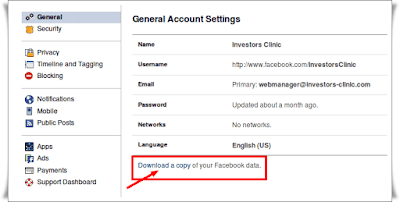
1. Backup your data by moving to drop down menu -> General tab in the left column -> click on “Download a copy”


2. Send your friend an e-mail letting them know you will no longer be on Facebook. You can drop a message through Facebook that you are leaving Facebook

3. Uninstall any Facebook apps that you use to login to Facebook. It may be that you are logged via Android Mobile, iPhone, or Blackberry. These may unintentionally cause you to remain logged in even after you attempt to delete your Facebook account. While you could also log out from these apps, but the safest measure is to get rid of them entirely.

Below step by step guide lead you to delete Facebook account:

1. Login to your Facebook account and then click below secret delete Facebook account link.
https://www.facebook.com/help/delete_account

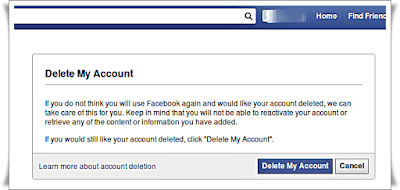
2. Pop up window will appear and then click Delete my account


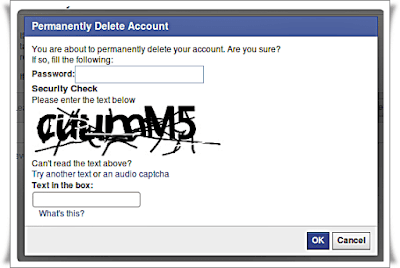
3. Confirm your decision with pop-up window. The pop-up window says “You are about to permanently delete your account. Are you sure?“. Enter password and security check and then click ok


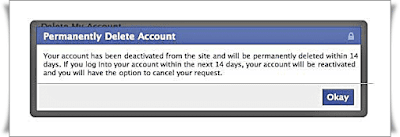
4. After confirming, again new pop-up window appears “Permanently Delete Account“. It says ” Your account has been deactivated from the site and will be permanently deleted within 14 days. If you log into your account within the next 14 days, your account will be reactivated and you will have the option to cancel your request.”


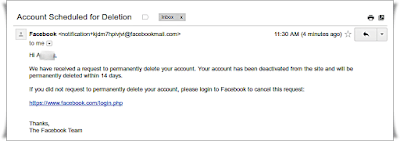
5. Now you would be logged out from your Facebook account. Check your email with the subject “Account Scheduled for Deletion“. In a mail you are requested again to cancel your request to permanently delete your account. It indicates that Facebook still doesn’t want to lose you. If you still want to come again to Facebook world, login with a given link.


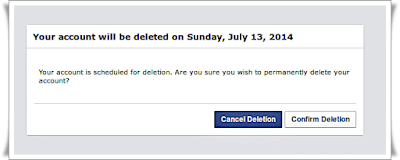
6. When you will log in again, a new pop-up appears. It say to either to “Cancel Deletion” or “Confirm Deletion“. Now again the choice is yours, “Cancel Deletion” if you want to come again or “Confirm Deletion” if you still stick with your decision.

Things to Note
1. Never login again next 14 days, if you are sure you wish to permanently delete your account.

2. If you wish to come back again, simply follow the link below within 14 days

3. Must log out of anything connected with Facebook. It may include any app or service that you’ve connected or logged in. It may be Instagram, Calender app, Spotify etc. on your smartphone.

4. Clear your browser’s cache and cookies from your desktop, smartphone and tablet. Otherwise, saved login credential on your respective devices will trigger account reactivation.


Read More
  • Share This:  
  •  Facebook
  •  Twitter
  •  Google+
  •  Stumble
  •  Digg

How can I see my blocked list on Facebook?

 Access Facebook, Account, Block, facebook account, Page, Profile, Settings     1 comment   

Did you block some Facebook friends and you don't know where to find them? We'll show you how to find or locate your blocked list on Facebook. Read on....

ON YOUR FACEBOOK APPLICATION:To view your blocked list on your mobile application, there are two ways:
Action 1
  • On your Facebook app, tap on the menu button (☰)
  • Tap on "Account Settings' (for iPhone users tap on "Settings")
  • Tap on "Blocking"
Action 2
  • Tap on the menu button (☰)
  • Tap on "Privacy shortcuts"
  • Scroll down and tap on "How do I stop someone from bothering me?"
  • On the drop down menu, tap on "Blocked users"ON YOUR BROWSER:
  • Click in the top right of any Facebook page
  • Click "Privacy Shortcuts"
  • Click "How do I stop someone from bothering me?"
  • Click "View All Blocked Users".
Viola!
Read More
  • Share This:  
  •  Facebook
  •  Twitter
  •  Google+
  •  Stumble
  •  Digg

Change Name on Facebook: Only Show First Name, Remove Last Name

 Access Facebook, Account, Android, Mobile, Name, People, Profile, Settings     No comments   

Do you like to have only your first name on Facebook? If yes, then I am sure that you should have tried to do that. But you were not able to change the name on Facebook as it doesn’t really allow you to have only the first name. The last name is a must on your profile. However, nothing is impossible and there is still a very simple way to do that. Facebook doesn’t allow any user from any country to have only a single name except for Indonesia. Indonesia is the only country in the world where most of the people have only the first name. And that’s why Facebook allows them to use the first name on Facebook. That’s what I will be doing in this guide. Yeah, I’ll tell you about how to change name on Facebook to only show the first name by removing the last name.

If you can disguise yourself that you are from Indonesia, you can have only a single name on your Facebook profile. That’s what I will be doing and I will tell you how to do that easily. There will be some things will be required in order to achieve this. First of all, you will need Firefox browser and a good Internet connection. Rest of the process is given below. Having only first name on Facebook is a great trip.

How to Change Name on Facebook to Only Show First Name, Remove the Last Name?Changing name on Facebook is not that easy as it sounds. You have to do certain proxy settings in the browser in order to achieve it. So, after you have your browser opened up, go through the following steps.

Step 1: Open Facebook and go to Settings page and click on Language. After that from the language change it to Bhasa Indonesia and save changes.


Step 2: Now go to any of these following web sites and copy the proxy. To copy a proxy, you need to copy the IP address along with the port number. The IP address will look like this 16.4.3.6 and a port number will look like 4 digits. Not see the stats of the most active proxy and copy down the corresponding details.

site1: https://www.proxynova.com/proxy-server-list/country-id/

site 2: http://www.gatherproxy.com/proxylist/country/?c=Indonesia


Step 3: Open the network setting for Firefox browser. To do this first open the preferences page. After that go to the advanced section and click on network. You can also paste this URL: “about:preferences#advanced” to reach here on this page. Now click on settings and enter the proxy settings with the corresponding details that you have copied during step 2.


Step 4: Now go to the names action and change it. You can have whatever first name you want to have. And the last name is optional now as we are disguising our self from Indonesia using the proxy. After changing the name save changes and it will ask you to enter the password. After that, you are done. If you see any error messages that Facebook so much then try two-three times and changes will save.

This is how you can change the name on Facebook to only have the first name. You can easily remove your last name with the help of the above guide. Also, if you are a Facebook customization lover, you will like this tweak.
Read More
  • Share This:  
  •  Facebook
  •  Twitter
  •  Google+
  •  Stumble
  •  Digg

How to Change Your Name on Facebook

 Access Facebook, facebook account, Name, New Facebook, Pages, People, Profile     No comments   

Facebook is one of the best social media. Here you can do many things like chat, post, comment or share something. In every activity, your name will also be added to your profile picture. The name carries your identity. Using the name, people can identify you with real life. Your name is the first thing what people will look for. So, the name should be perfect that your friends and other people can identify you at Facebook. Your name is also used when someone searches for your Facebook Account. So, your name is one of the vital elements of your Facebook account.
Before setting your name, you should know the Facebook standard guideline for choosing profile name. Here are some of the important point of that guide line. You can’t use any of those at your Facebook name.

  • You can’t use any symbol, number, unnatural capitalization, punctuation and repeating character.
  • Different language(letters).
  • Title or Surname. (Dr./Eng./Pr.)
  • General Words or phrases.
  • Any kind of word that is offensive or suggestive.

According to Facebook name guideline, they have stated that you can use the name that you used to know. Put your name that everyone uses to call you. You name could be anything strange or beautiful that doesn’t matter. Facebook will accept your name if don’t use the too strange name.

Change Your Name on Facebook Using Computer
There are several computing devices to browse the internet. Those are Desktop, Laptop, and other devices. However, if you are a computer device user and wants to change your Facebook username then use this method on your computer device.

Step 1: Firstly, open your web browser and go to https://www.Facebook.com/ and just log into your account
Step 2: Now you have to click on the upside-down arrow at the top-right side of your Facebook home screen.
Step 3: Then you will get this menu. Click on ‘Settings’.

Step 4: Now click on Name section.

Step 5: Enter your First, Middle, Last name.

Step 6: Click Review Changes button.

Step 7: Enter your current Facebook Password and click on Save Changes.


Change Your Name on Facebook Using Mobile Phone
Mobile devices are also one of the most popular smart devices to use Facebook. If you are a smart mobile device, you can also change your current Facebook name just using those simple steps one by one.

Step 1: Open your favorite internet browser. Then go to https://www.Facebook.com/ and log into your account using Facebook mobile login process.

Step 2: Click on the menu option at the top-right side of your screen.

Step 3: Go to the last section of the menu and click on Account Settings.

Step 4: Click General section.


Step 5: Tap on the Name option that is listed at first.

Step 6: Enter your First, Middle, Last name one by one. Then click on Review Changes button.


Step 7: Type your current Facebook account Password. Click Save Changes option and that all.


Read More
  • Share This:  
  •  Facebook
  •  Twitter
  •  Google+
  •  Stumble
  •  Digg

Change Your Name On Facebook

 Access Facebook, Account, facebook account, Mobile, Name, People, Profile, Settings     No comments   

We will show you how to quickly change your name on Facebook to reflect your current name. Marriage can cause a change of name, religion can cause a change of name, etc. Learn how to change your own name on Facebook here.

First, login Facebook:


Then, click here and go to General Account Settings:


Next, enter First Name, Middle Name and Last Name:


After that, click Review Change:

Choose how your name will appear on your profile (Jessica Landa or Landa Jessica) :

Finally, type your password and Save Changes:

Done.
That's How To Change Your Name On Facebook
Read More
  • Share This:  
  •  Facebook
  •  Twitter
  •  Google+
  •  Stumble
  •  Digg

How to Check Facebook Email

 Access Facebook, Account, facebook account, facebook app, Facebook followers, Facebook for Business, Messages, Messenger, Mobile, Profile     No comments   

This question is most renowned as well as there are so several individuals available that are asking this question. Among our viewers has actually asked the exact same concern on our Facebook web page as well as we understand that numerous viewers likewise would like to know the treatment to obtain e-mail from facebook so in this tutorial we will certainly discuss the most effective way to obtain the e-mail address of a good friend from Facebook account.

Facebook has a development and also clever personal privacy setting as well as you could quickly hide your e-mail as well as various other information from any individual. So let expect your pal is a master of Facebook privacy and also you wish to know his/her e-mail address for whatever purpose.


How To Check Facebook Email.
In this tutorial we will show you the finest and clever way to obtain e-mail of a pal from facebook.

* Yahoo account

* The person needs to be your pal on Facebook

* A brain (Essential).

Go to address.yahoo.com as well as click the Facebook symbol, a dialog box will be appear that will certainly ask your consent.


It spends some time and compared to you are done, you could see email addresses of your friends. Check the name of the individual to which you need to find the email and also compared to you can easily locate any email of Facebook close friend.


Note: If you intend to discover more about Linux and Windows based Infiltration testing, you may intend to subscribe our RSS feed and Email Membership or become our Facebook follower! You will certainly get all the current updates at both the places.


Read More
  • Share This:  
  •  Facebook
  •  Twitter
  •  Google+
  •  Stumble
  •  Digg
Older Posts Home
How to Install Facebook Marketplace Near Me App

How to Create a Facebook Business Page

How to Completely Delete Facebook Search History

How to Sign in or Login Instagram with Your Facebook

Marketplace Facebook Buy and Sell within Local Community – Marketplace Facebook Buy Sell App

How to Deactivate FB Account Temporarily on Facebook

How to Find Blocked Facebook List to Unblock blocked Friends

How to Use the “Near Me Friends” Facebook Feature

FB Customer Care Center & Email Help Supports Contact Addresses

How to Install & Play the Facebook Farmville Games
How to Install Facebook Marketplace Near Me App

How to Create a Facebook Business Page

How to Completely Delete Facebook Search History

How to Sign in or Login Instagram with Your Facebook

Marketplace Facebook Buy and Sell within Local Community – Marketplace Facebook Buy Sell App

How to Deactivate FB Account Temporarily on Facebook

How to Find Blocked Facebook List to Unblock blocked Friends

How to Use the “Near Me Friends” Facebook Feature

FB Customer Care Center & Email Help Supports Contact Addresses

How to Install & Play the Facebook Farmville Games

Blog Archive

  • ▼  2019 (5)
    • ▼  July (5)
      • Selling Via Facebook Marketplace - Selling stuff o...
      • Facebook Buy and Sell – Facebook Buy and Sell Mark...
      • Link Facebook to Instagram – Login Instagram From ...
      • Facebook Marketplace Buy And Sell | Join Marketpla...
      • Facebook Marketplace - Facebook Online Marketing
  • ►  2018 (2310)
    • ►  December (2)
    • ►  November (181)
    • ►  October (197)
    • ►  September (1165)
    • ►  August (665)
    • ►  July (100)

Copyright © Basic Facebook Guide